
Leboncoin is one of the most visited sites in France, and many users return several times a day to check listings or manage their sales. Accessing the site from a shortcut placed on the computer’s desktop avoids going through the browser, the favorites bar, or a search engine each time. The process remains simple, but it varies significantly depending on the browser and operating system used.
Web shortcut or installed application: two distinct approaches
Creating a shortcut to leboncoin.fr on the desktop is not just about dragging a URL. Recent browsers offer two approaches that do not yield the same results on a daily basis.
The first, classic method, generates a simple shortcut file (.url on Windows, alias on macOS). A double-click opens the default browser and loads the page. The icon displayed on the desktop is often generic or pixelated.
The second, more recent approach, involves installing the site as a web application from the browser menu. Edge and Chrome offer this option. The site then opens in a dedicated window, without an address bar or visible tabs, and the icon takes on the official Leboncoin logo. For those who want to put the Le Bon Coin icon on the desktop with a clean appearance, this second method provides a much more polished result.
The difference is not merely cosmetic. A classic shortcut depends on the default browser, which may change after a system update. An installed application remains tied to the browser that created it, ensuring stable behavior.
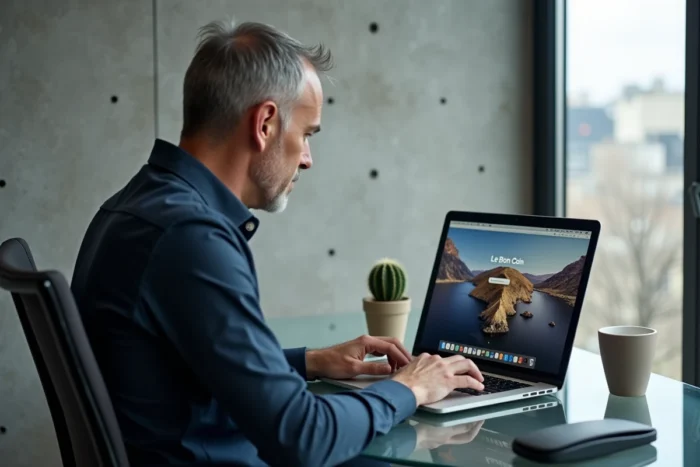
Create the Leboncoin shortcut on Windows with Chrome or Edge
On Windows, the procedure goes through the browser. The steps vary slightly between Chrome and Edge, but the principle remains the same.
With Google Chrome
- Open leboncoin.fr in Chrome, log in if necessary for the personalized homepage to display.
- Click on the three dots menu in the top right, then select “Save and Share” (or “More Tools” depending on the version), then “Create Shortcut”.
- Check the box “Open as a window” before confirming. This option transforms the shortcut into a standalone web application with the Leboncoin icon.
The shortcut appears immediately on the desktop. It is also added to the list of Chrome applications, accessible from chrome://apps.
With Microsoft Edge
Edge integrates this feature even more directly. From leboncoin.fr, open the three dots menu, choose “Apps”, then “Install this site as an app”. Edge automatically generates an icon on the desktop and offers to pin the shortcut to the taskbar or Start menu.
The advantage of Edge is that the web application window supports site notifications if they are enabled, which can be useful for tracking messages related to a listing.
Leboncoin shortcut on macOS: Safari and its limitations
On Mac, the situation is less uniform. Safari does not offer the same web application installation feature as Chrome or Edge, at least not with the same level of integration.
The most reliable method on macOS is to use Chrome and follow the same procedure as on Windows. The created shortcut appears in the Chrome Applications folder and can be dragged to the desktop or the Dock.
With Safari, it is still possible to drag the URL from the address bar to the desktop. This creates a .webloc file that opens the page in Safari. The obtained icon is that of Safari, not of Leboncoin, making the shortcut less identifiable among other files on the desktop.
Recent versions of macOS allow adding a site to the Dock via Safari (File menu, then “Add to Dock”). The result is similar to a web application, but the shortcut ends up in the Dock rather than on the desktop itself.
What changes after a browser or site update
A rarely discussed point concerns the longevity of the shortcut. A simple .url or .webloc file points to a fixed address. If Leboncoin changes the structure of its URLs (switching from www.leboncoin.fr to another domain, redirection), the shortcut may stop working or load an error page.
Web applications installed via Chrome or Edge are more resistant to this type of change, as they are linked to the main domain and follow standard redirections. However, a major browser update can reset the list of installed applications. This phenomenon is rare, but it has occurred during Chrome profile migrations.
To mitigate this risk, check after each major browser update that the shortcut still works. If the icon has disappeared, reinstalling takes less than a minute by following the procedure described above.
Desktop shortcut for Leboncoin on phone or tablet
The question also arises on mobile, even if the “desktop” takes the form of a home screen. On Android, Chrome offers “Add to Home Screen” from the browser menu. On iPhone and iPad, Safari provides the same option via the share button then “Add to Home Screen”.
The mobile shortcut takes the official Leboncoin logo and behaves like a distinct application. The page loads in full screen, without the browser interface. This method works regardless of whether the Leboncoin app exists on the device.
Creating a desktop shortcut to Leboncoin takes just a few seconds regardless of the system. The cleanest method is through installation as a web application from Chrome or Edge, which guarantees a recognizable icon and a dedicated window. On macOS, prefer Chrome over Safari to achieve a result equivalent to Windows. And on mobile, the native functionality of the browsers does the job without additional tools.